What Merge PNG to PDF does
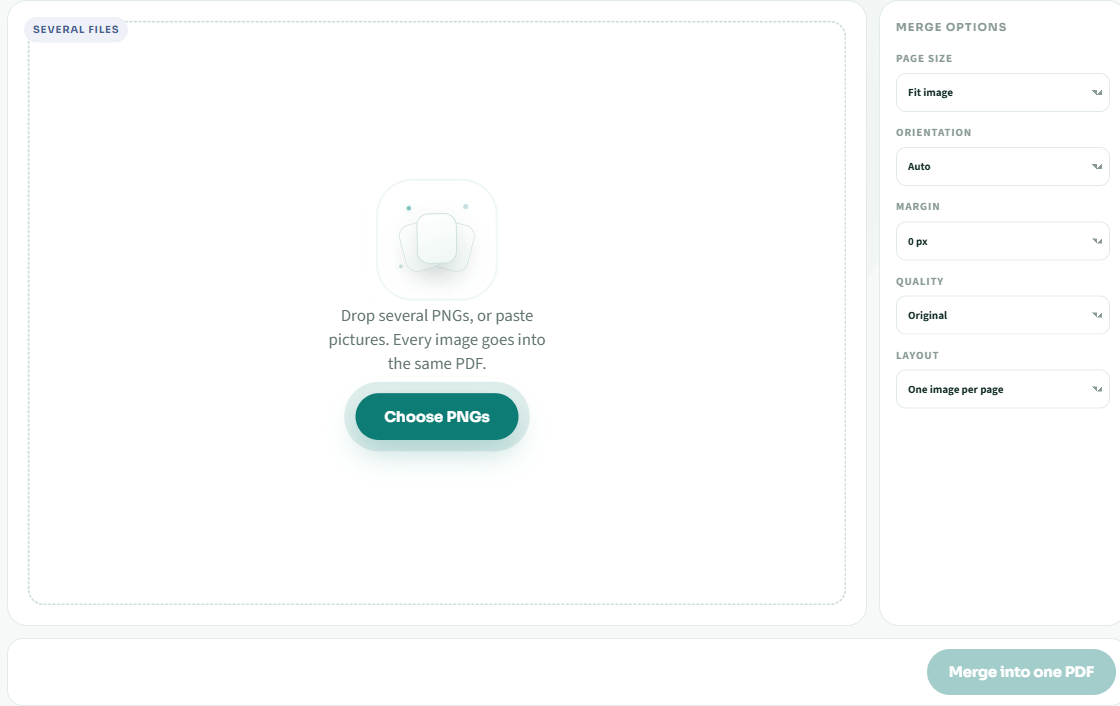
Merge PNG to PDF takes a stack of images and writes them into a single PDF, in the order you set. A PNG merger is useful when each export is its own file: a multi-page scan, a set of slides, or a sequence of screenshots. Merge PNG files once, and you send one attachment instead of a folder.
This page is for the multi-file job: select many images, drag to reorder, and choose whether each image gets its own page or several share a sheet. For a single PNG that only needs size and quality controls, use convert a single PNG to PDF on the homepage.
How to combine the files
- Drop every PNG you want in the finished document, or paste one from the clipboard.
- Drag rows until the page order matches the document you want to send.
- Choose one image per page, or tile several images on each sheet. Set A4, Letter, or fit, plus a margin.
- Click Merge into one PDF. The name looks like png2pdfs-YYYYMMDD-HHmm.pdf and the file stays on this device.
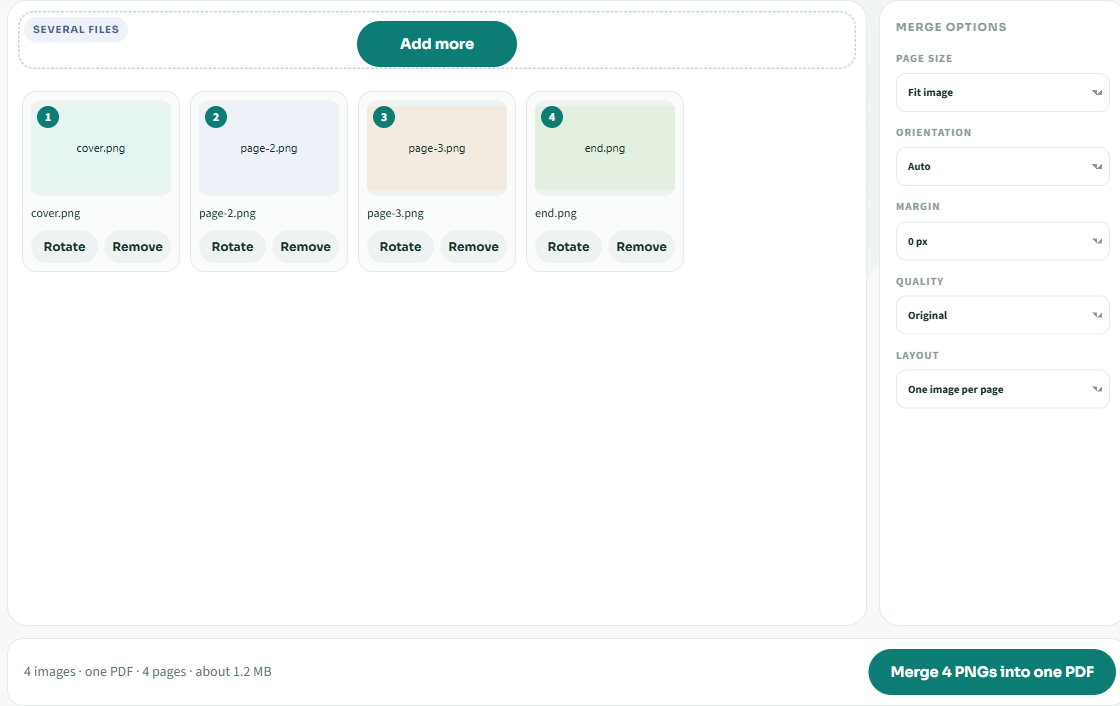
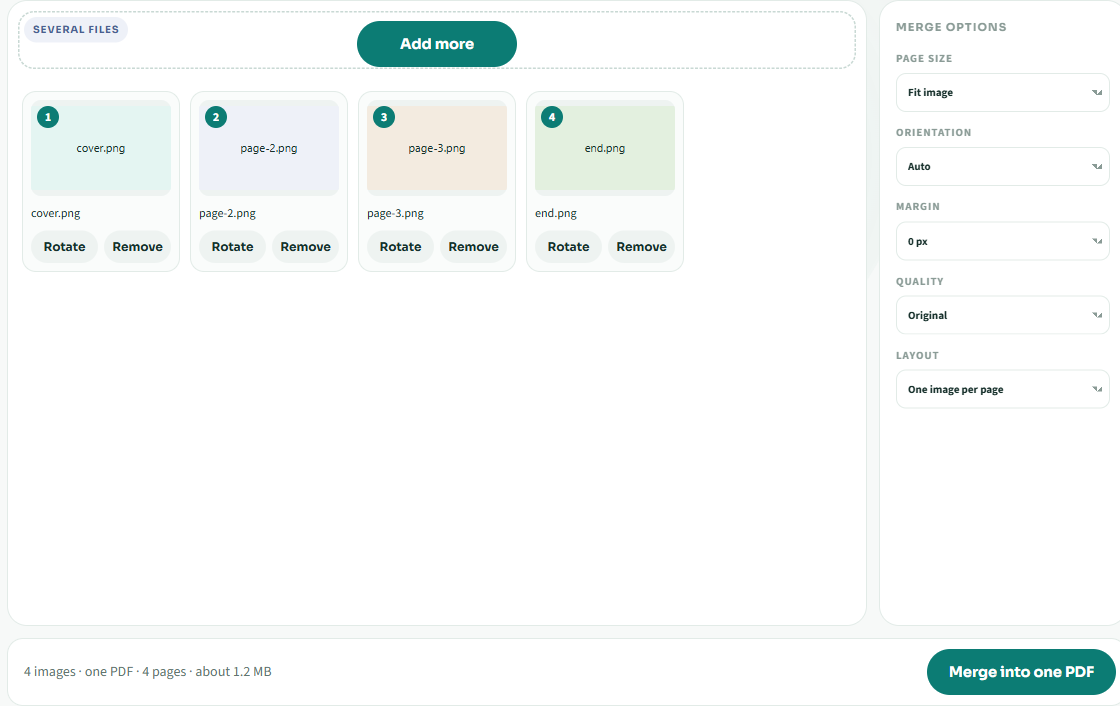
Fit keeps each picture's shape. A4 and Letter are for printing. Auto flips the paper when a picture is wider than it is tall. A 0 pixel margin uses the full page. 10, 20, and 40 pixels inset the picture. Original quality stores a white-matted PNG. Compressed 0.8 stores a smaller JPEG. Layout is the batch control: one image per page, or up to four images tiled on each sheet. Fifty images is the cap. If the set is larger, finish this PDF and combine the rest in a second download.
How this differs from an upload merger
An online merger that stores the upload has to queue the job and then delete it. You wait, you trust the server with the pictures, and the link dies on a timer. Here the merge finishes in the tab. A transparent PNG is matted to white so the page does not turn black. A broken file is named in a sentence, not an error code. JPG and WebP can join the same merge when a page of the set was not exported as PNG.
Sorting and tiling are why this page exists. Use convert a single PNG to PDF when you only have one image and care about page size and quality. Use this page when the job is to merge a stack into one file.
Common questions
Do you upload the PNG files to merge them?
No. The merge runs in the browser. The images leave your device only if you later attach the PDF yourself.
Can I choose the page order?
Yes. Drag a row up or down. The top row becomes page 1 when each image has its own page.
Can I put more than one PNG on a page?
Yes. Choose Several images per page. The sheet then holds up to four images. One image per page is the default.
What page sizes are available?
Fit image, A4, and Letter. Orientation can follow the picture or stay portrait or landscape. Margins are 0, 10, 20, or 40 pixels.
Is there a watermark or an account?
Neither. The download is a plain PDF with the images you added.
What if one file in the set is damaged?
The download stops and says that file could not be read. Remove the bad row and download again. The other rows stay in the list.